Navigation
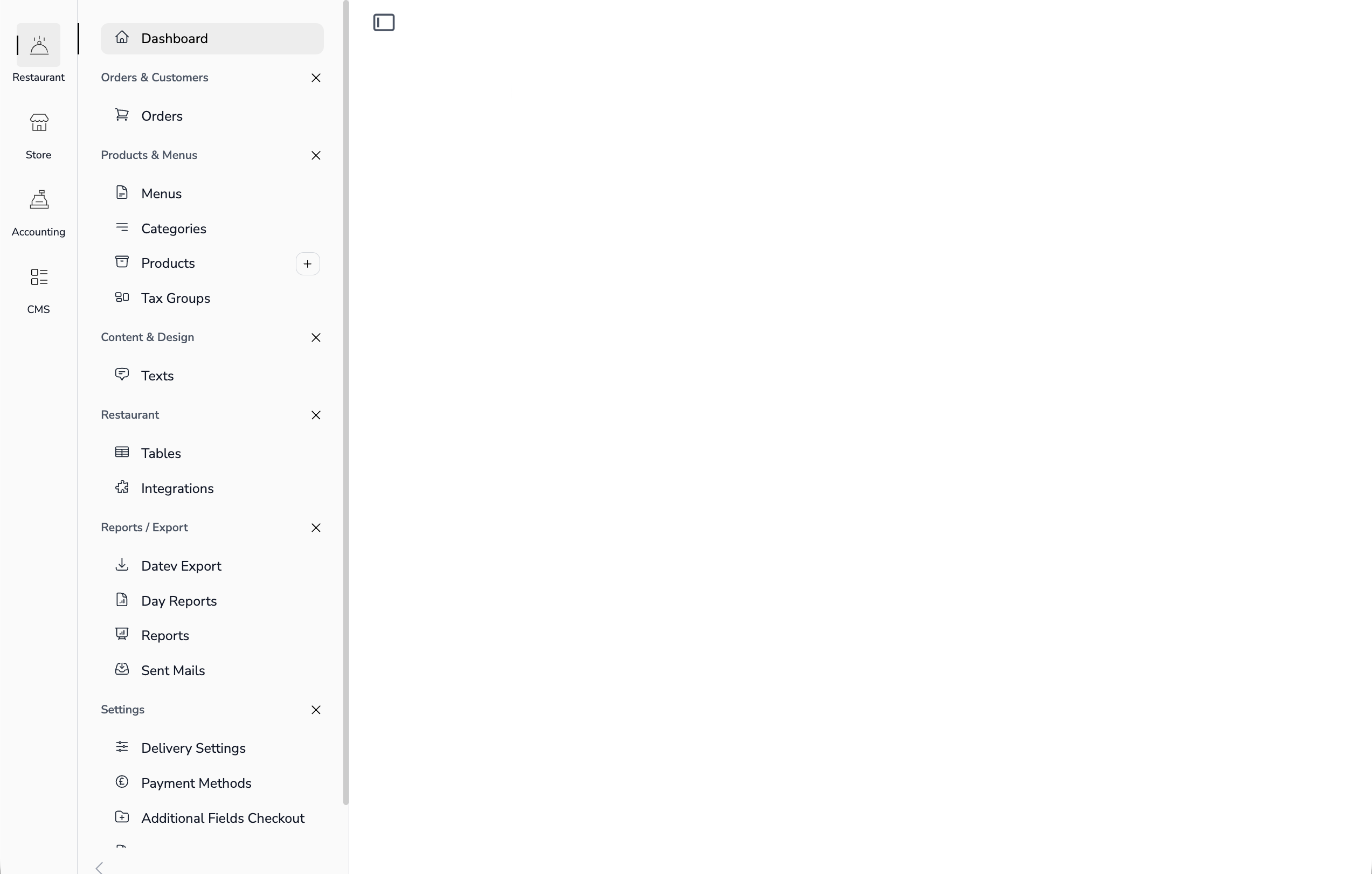
Navigation is defined in YAML files. Each app has its own navigation configuration.
File Location
app-configs/{app}/navigation.ymlFor example: app-configs/inventory/navigation.yml (the module ships its template at app-modules/inventory/app-configs/inventory/navigation.yml — keep both copies in sync)
A navigation file is a list with one app entry: app metadata on top, block_menus with their navigations below — see the full example.
Top-Level Properties
| Property | Description |
|---|---|
title | Display name of the app (translation key) |
name | Unique identifier for the app |
route | The app's main route |
block_menus | Groups of navigation items (see below) |
sub_menu | Optional flat secondary menu |
title, name and route are app metadata: noerd:install-{module} writes them into the installed copy from the app title given during installation plus the app key (HasModuleInstallation::installAsNewApp()), so a module template only needs sensible defaults there. Whether an app shows up in the app bar is not a navigation key — it is the tenant's tenant_app.is_hidden flag (Setup → Apps).
Block Properties (block_menus[])
| Property | Description |
|---|---|
title | Block heading (translation key). Users can collapse a block; the state is kept in the session |
navigations | The entries of the block (see below) |
route | A block with a route and no navigations renders as a single top-level entry. config: / superAdmin: are entry keys and are not evaluated on it |
heroicon | Icon for the single-entry form |
style | list (default) or buttons — renders the block's entries as buttons |
dynamic | Provider type resolved through the DynamicNavigationRegistry — the block's entries are generated at runtime (e.g. the Setup collections). See Extension Registries |
Entry Properties (navigations[])
| Property | Description |
|---|---|
title | Display name (translation key) |
route | Laravel route name — the entry NAVIGATES there (and drives the active-state highlight) |
link | Plain URL (/… or absolute) instead of a named route |
external | Opens the target in a new tab and shows an external-link icon |
heroicon | Icon from Heroicons (e.g., users, cog-6-tooth) |
icon | Alternative: a noerd blade icon component name (e.g. icons.media) |
modalRoute | Named route opened as a MODAL instead of navigating |
component | Livewire component opened as a modal — fallback for modalRoute |
arguments | Arguments passed to the modal opened by modalRoute/component — and, merged with the quick-create keys, to the "+" target |
newRoute | Named detail route opened as a modal by the "+" button (preferred). The "+" renders only on a plain route: entry — not on link:, modalRoute: or component: entries |
newComponent | Livewire component opened by the "+" button — fallback for newRoute |
quickCreate | With newRoute/newComponent: open the "+" target as a narrow quick-create modal (modelId: null, quickCreate: true) |
config | The entry is hidden unless config(...) with this key is truthy (e.g. noerd.features.currency) |
superAdmin | The entry is only visible to super admins — the installation admins, see Permissions |
Route vs. component
route: always means navigate to that page; opening something as a modal uses the separate keys (modalRoute:/component: for the entry itself, newRoute:/newComponent: for its "+" button).
Route names follow the module convention (see Creating Modules): {module}.{entities} for the list page, {module}.{entity}.detail for the record, and {module}::{entity}-detail for the component fallback.
newRoute:/modalRoute: win when the named route is registered; the *Component key is used otherwise, so an entry may reference a route owned by an optional module. See Modal System for when a route is the right target.
Entries are filtered by target existence
An entry whose target cannot be resolved is silently dropped: a route:/modalRoute: must be a registered route (link: and component: always pass). This keeps navigation YAMLs valid when an optional module that owns the route is not installed — stale entries simply disappear instead of breaking the sidebar.
Full Example
app-configs/inventory/navigation.yml
- title: Inventory
  name: inventory
  route: inventory
  block_menus:
    - title: Stock
      navigations:
        - title: Items
          route: inventory.items
          heroicon: archive-box
          newRoute: inventory.item.detail
          newComponent: inventory::item-detail
        - title: Stock Movements
          route: inventory.stock-movements
          heroicon: arrows-right-left
        - title: Import
          component: inventory::stock-import-modal
          arguments:
            source: sidebar
          heroicon: arrow-up-tray
    - title: Reports
      style: buttons
      navigations:
        - title: Low Stock
          link: /inventory/items?view=low-stock
          heroicon: exclamation-triangle
        - title: Supplier Portal
          link: https://example.com
          external: true
          heroicon: globe-alt
    - title: Settings
      navigations:
        - title: Settings
          route: inventory.settings
          heroicon: cog-6-tooth
        - title: Currencies
          route: inventory.currencies
          heroicon: currency-euro
          config: noerd.features.currency
Next Steps
Continue with Create a List View to display data in tables.